
Set up your Maverick Sport.
Five steps from box to your first activity.

Before you start: check the box
Something missing? Tell us.
Charge your Maverick Sport
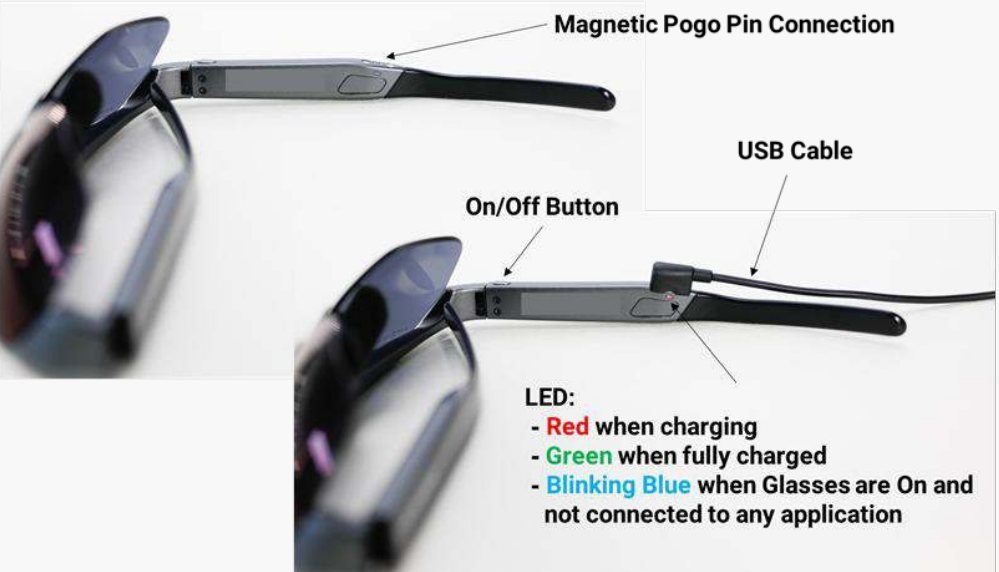
Attach the magnetic cable to the charging contacts on the temple. Plug the other end into a USB power source. Charge until the light turns green.
No red light?
- Check the magnetic cable is sitting on the charging contacts on the left temple.
- Try a different USB power source or cable.
- Still nothing? Tell us.
Get the app
Your Maverick Sport needs an app on your phone. Pick what you will do first. You can add the others later.
Check your phone is supported: compatible phones.
Pair your glasses
- Turn Bluetooth on and keep your phone close.
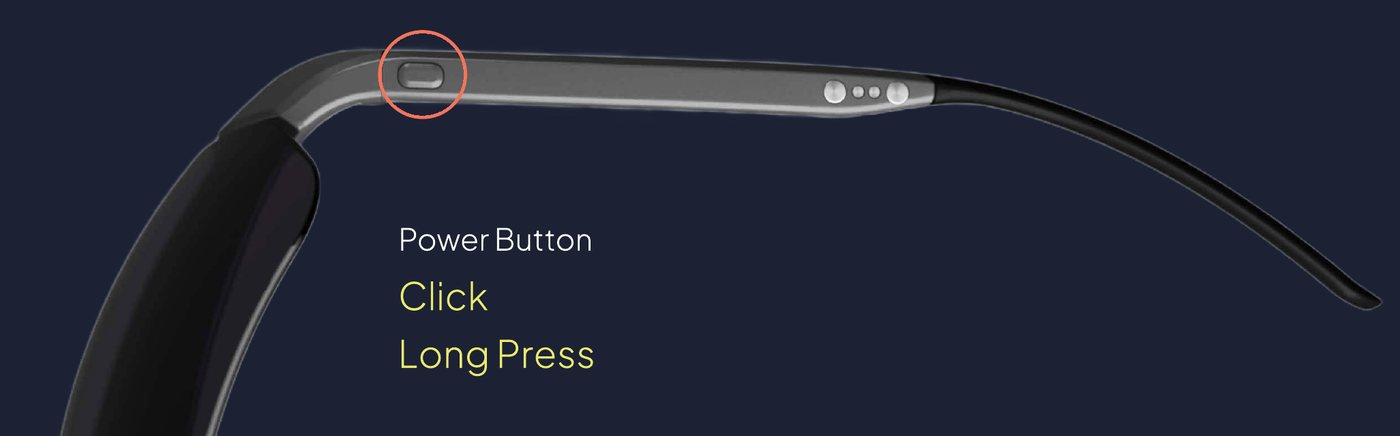
- Hold the power button on the temple for 3 seconds, until the light blinks blue.
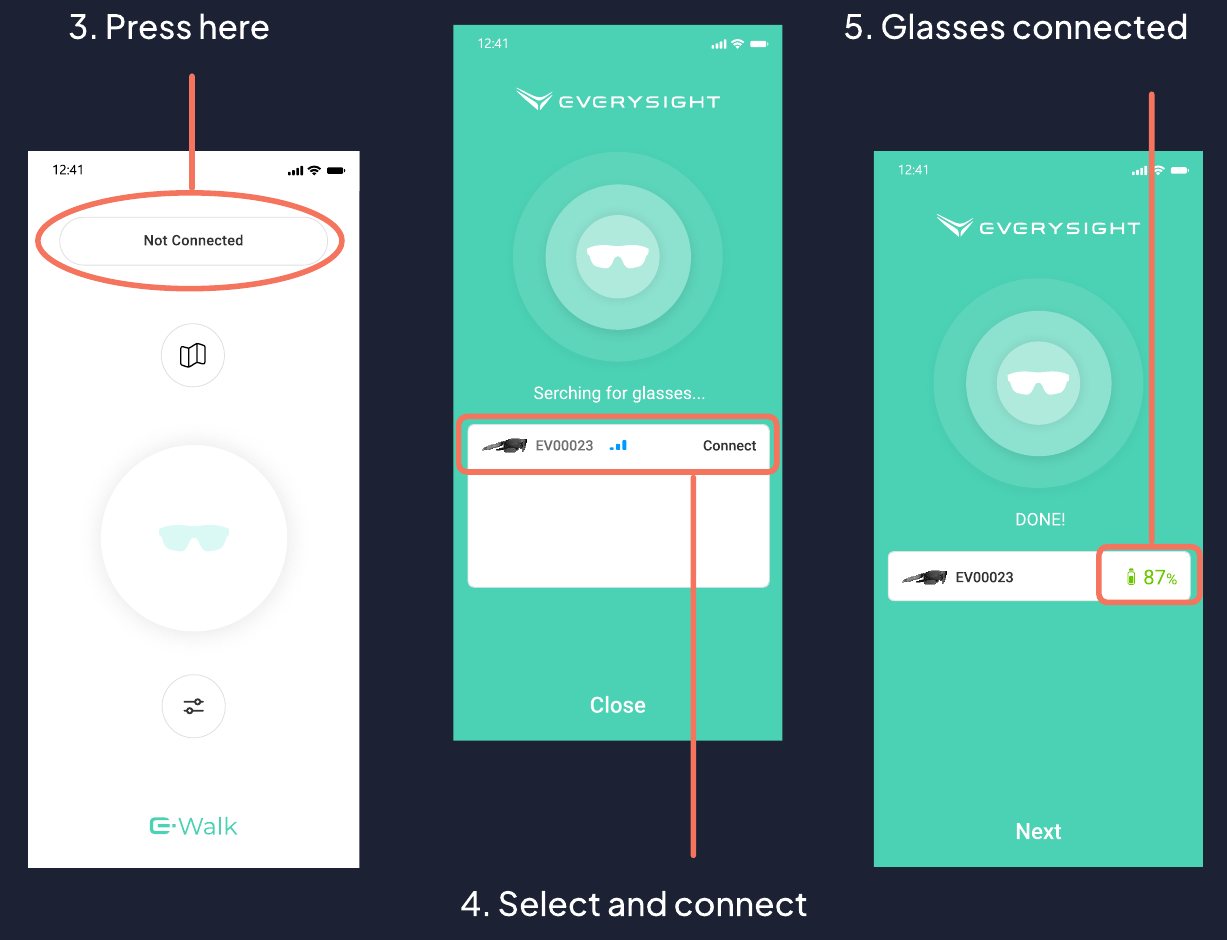
- Open the app and tap Not connected at the top.
- Pick your glasses from the list by serial number and tap Connect.
Won't connect?
- Glasses connect to one phone at a time. Disconnect any other phone.
- Check the light is blinking blue. If it is not, hold the power button for 3 seconds again.
- Turn Bluetooth off, then on, and close and reopen the app.
- Restart the glasses: hold the power button for about 7 seconds, until the shutdown icon appears, then turn them on again.
- Still not connecting? Tell us.
More detail: pairing your Maverick Sport with the app.
Fit your glasses
Right after you connect, the app shows Adjust the nosepiece. Do it now. It puts the display where your eye expects it.
- Tap Next when the app says your glasses are connected.
- Put the glasses on. Move them gently up and down on your nose and aim to see as many squares as you can.
- Still cut off, or not comfortable? Swap the nosepiece for another size from the box. The size is marked on each one. Check the squares again.
- Set the brightness, then tap Continue. Please don't tap Skip for now.
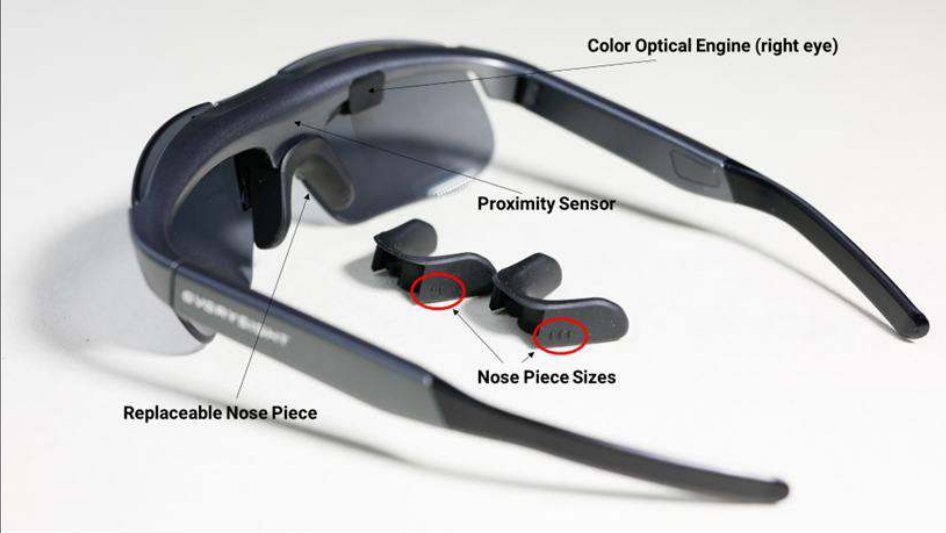

Your glasses come in Standard (IPD 64 to 72 mm) or Narrow (IPD 55 to 63 mm), chosen when you ordered. The nosepieces in the box fine-tune comfort and height.
Display low, cut off or blurry?
- Try another nosepiece size from the box.
- Move the glasses up and down on your nose again until the squares are complete.
- Wipe the visor with the soft lens cloth from the pouch.
- Check the glasses are fully on and sitting level.
- Still not right? Tell us.
Set your display and go
Choose how your display looks, then start your first activity.
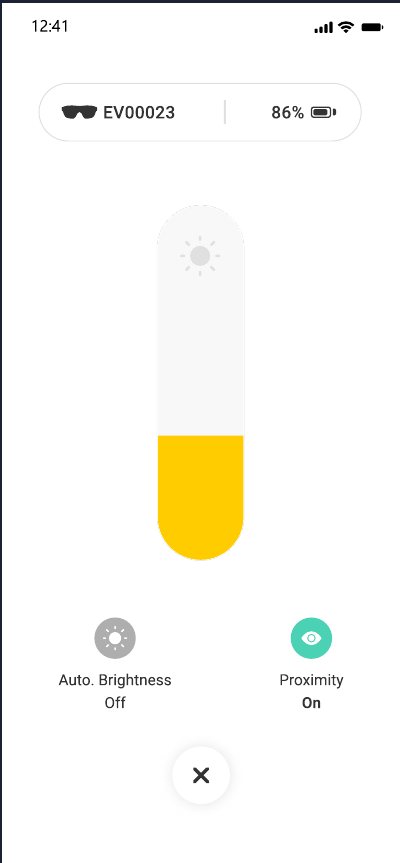
- On the app home screen, tap the glasses icon. Set the brightness, or turn on Auto brightness.
- Check Proximity is on. It switches the display off when you take the glasses off.
- In Preferences, choose whether the HUD display is always on.
- Choose cycling, running or golf, and start.
Touch controls on the temple
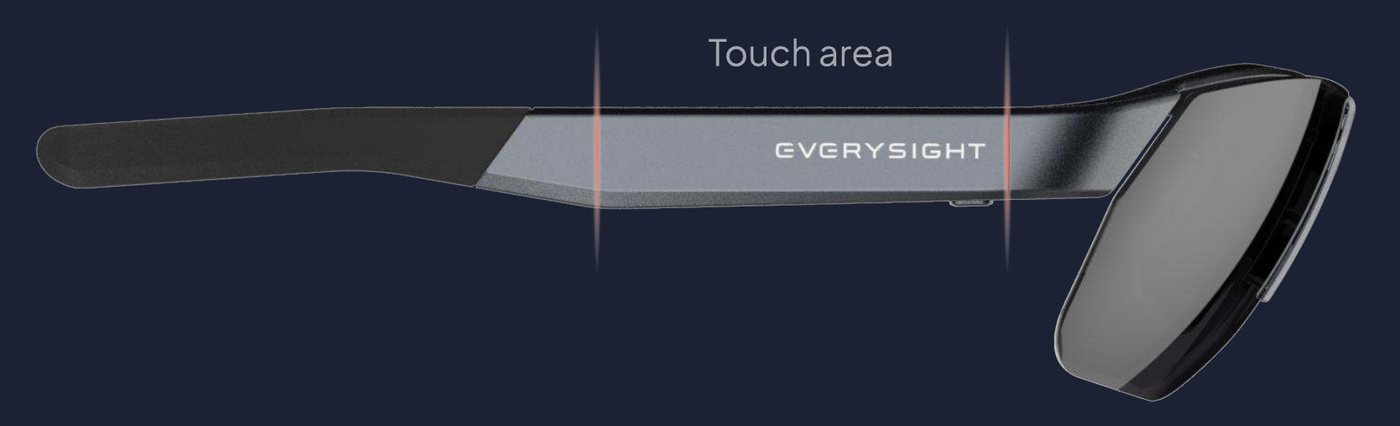
What each one does depends on the app. Your app has a Gesture Guide and Tutorial in its settings.
Touch controls not responding?
- Use the touch area on the temple, not the power button.
- Check the app is connected.
Display went off?
- Click the power button to wake it.
- Check Proximity on the glasses icon screen. The display switches off when the glasses are not on your face.
- Check HUD display in Preferences.
Stuck? Start here.
Most setup problems are one of these.
My glasses won't turn on
Hold the power button on the temple for 3 seconds, then let go. If nothing happens, they may need charging. Attach the magnetic cable and look for the red light.
They won't connect to my phone
- Glasses connect to one phone at a time.
- Hold the power button for 3 seconds until the light blinks blue.
- Turn Bluetooth off and on, then reopen the app.
I can't see the display
- Check the glasses are connected and the light is not blinking blue.
- Click the power button to wake the display.
- Check Proximity and HUD display in the app.
- Move the glasses gently up and down on your nose.
The display is cut off or blurry
- Try another nosepiece size from the box.
- Wipe the visor with the soft lens cloth.
The app keeps disconnecting
- Keep your phone close and Bluetooth on.
- Check the glasses have charge.
- Restart the glasses (hold the power button for about 7 seconds) and reopen the app.
The touch controls don't respond
- Use the touch area on the temple.
- Check the app is connected.
Do I need my phone with me?
Yes. Maverick Sport shows data from the app on your phone, so keep your phone with you. It can stay in a pocket or bag.
Still stuck? Talk to us.
Tell us what you see and we will help you get it working.
Contact supportNeed help? support@everysight.com, support.everysight.com/hc/en-us, or Settings, then Support in the app. Order question? store@everysight.com.
Prefer to read? Getting started with Maverick Sport.
How did setup go?
One tap. It helps us fix what is confusing.